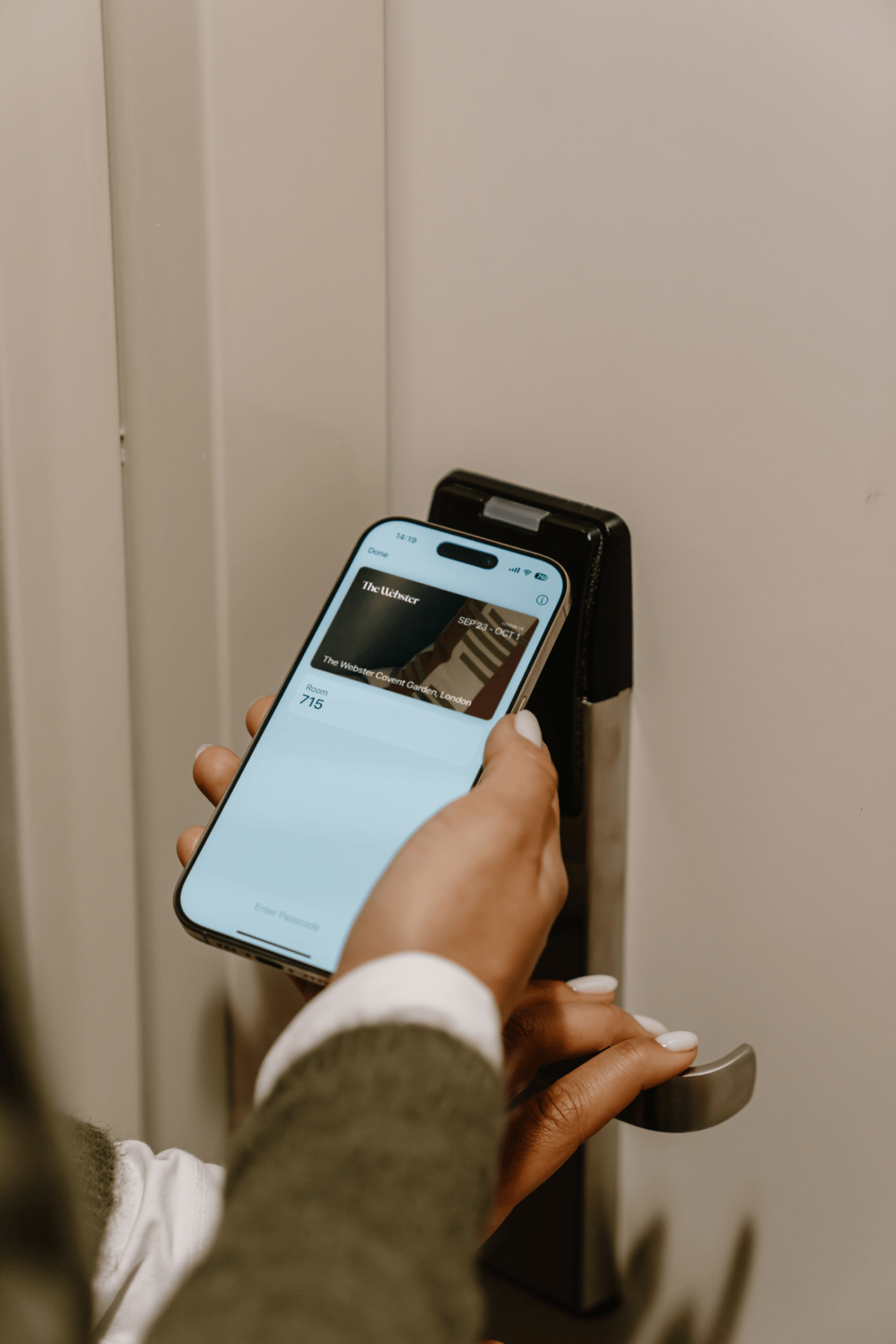
From the confirmation email or our online guest portal, add your room key to Apple Wallet or Google Wallet on your mobile device for easy access to your room and other hotel spaces.
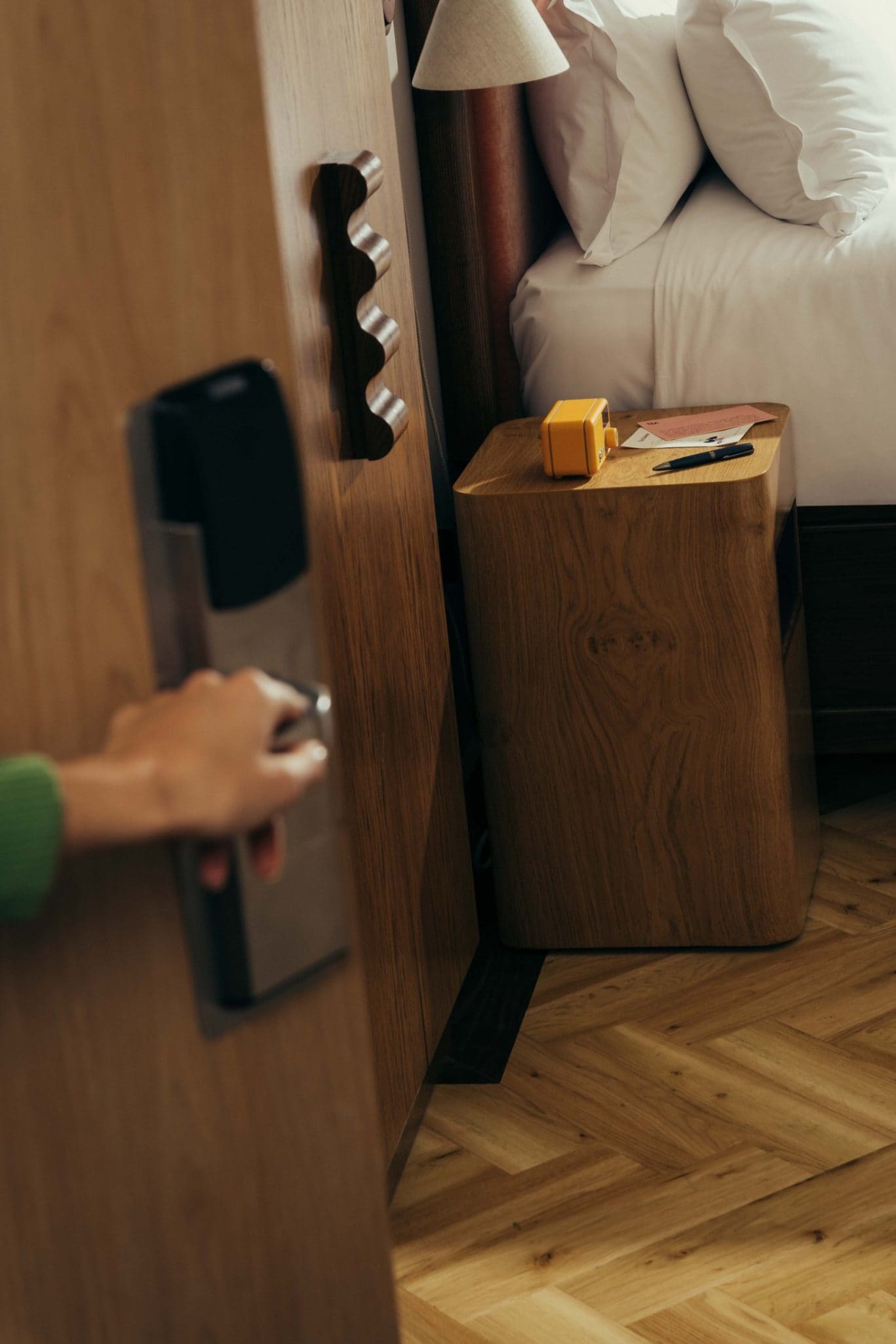
Just hold your mobile device near the guest room lock reader to unlock. It’s easy, convenient, and secure.
A new level of Service
From the confirmation email or our online guest portal, add your room key to Apple Wallet or Google Wallet on your mobile device for easy access to your room and other hotel spaces.
Just hold your mobile device near the guest room lock reader to unlock. It’s easy, convenient, and secure.
*Apple Wallet access for Webster guests will be available starting in April, ahead of our official opening.*
Register
Register to gain access to Wallet Key.
Easy Check-In
Skip the lines at the front desk and go straight to your room without a physical key.
Instant Room Access
With Apple Express Mode, there’s no need to unlock your device. Easily access your room by holding your iPhone or Apple Watch near the reader to unlock the door.
Always Reliable
Use your room key for up to 5 hours after your battery runs on your iPhone with Apple’s Power Reserve.
Privacy and Security
Your data is always safe with Apple Wallet and Google Wallet’s built in privacy and security features.


Frequently Asked Questions
Before you arrive at The Webster, please visit the Wallet Key page on our website at www.thewebsterhotel.com/wallet-key to register and add your reservation to your Apple Wallet or Google Wallet; you can do this right from your mobile device.
Once you are checked into your reservation, your room number will appear on the Wallet Key and it will be fully activated and ready for use.
To use your room key to unlock your room, simply hold your mobile device near the reader on the door to unlock.
• A reservation at a The Webster • A verified account with The Webster • A compatible mobile device
• iPhone 8s, iPhone 8s Plus or later, running iOS 16.2 or later • Apple Watch Series 3 or later, running WatchOS 9.2 or later
Your room key in Apple Wallet is easier to use than many alternatives, and you don’t even need to wake or unlock your device. Even if your iPhone needs a charge, your key will still work for up to five hours with Power Reserve.
When you add a room key to Apple Wallet on your iPhone, it is automatically added to your paired Apple Watch. Once your room key has been added, simply hold your Apple Watch near the reader to unlock.
You may add a room key to Apple Wallet on one iPhone and one paired Apple Watch and any additional device attached to your iCloud account.
If needed, you may switch your room key to a different iPhone or paired Apple Watch. Once the key is activated on the new device, it will be automatically removed from the previous one.
You can also share your Wallet Key with your travel companion by going to www.thewebsterhotel.com/wallet-key and sharing the key via the QR code shown when pressing the “Share Your Key” button.
In addition to your room, your Wallet Key can also be used to access the same hotel spaces where you would use a plastic key such as the fitness center and common areas.
After booking your reservation, look for the relevant “Add to Wallet” button in your reservation confirmation email.
After your Wallet Key has been activated, just hold your mobile device near the reader on the door to unlock. As a bonus, with Apple’s Express Mode, you don’t even need to wake or unlock your device. It’s that simple.
After booking, you can add your room key to Apple Wallet or Google Wallet by clicking on the relevant “Add to Wallet” button on the reservation confirmation email. Your room key will automatically activate once you check in and your room has been assigned.
Yes, you can use both.
Each stay will be represented with its own room key in Apple Wallet or Google Wallet. When your stay is over, your room key will be deactivated remotely and archived. Future Wallet reservations will automatically activate once you have completed the online registration, and the reservation has been checked in and a room has been assigned.
If your iPhone needs a charge, your key in Apple Wallet will still work. Power Reserve provides up to five hours of access, so you can still get inside.
Wallet Key takes full advantage of the privacy and security features built into your mobile devices.
If you think your iPhone or Apple Watch is lost or stolen, you can use iCloud.com or the Find My app on another Apple device. If you need a new room key, please visit the front desk.